
Service updates contain changes from Microsoft which can introduce, deprecate, or otherwise modify functionality within Dynamics 365 Finance & Supply Chain. They can also sneak up on you rather quickly.
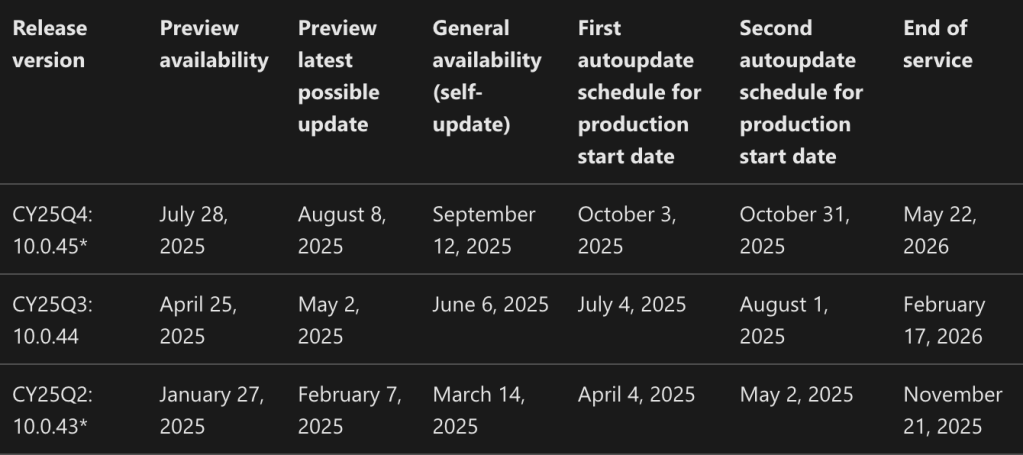
Release dates for D365 F&SC are published on the Microsoft learning page, but if you’re anything like me, it’s difficult to maintain the habit of checking the site periodically. I’m also the type of person who would rather spend hours automating a tedious or easily forgettable task as opposed to actually doing it (even if doing it only takes a few minutes…).
When looking at the service update page, we can see that it’s a basic HTML table. That is, it looks like it can be scraped pretty easily. What if there was a way to extract this information into an app and get notifications whenever there are changes?
Execution
Since I’m trying to automate a pretty small task for myself, I opted to use Power Automate and a Power App to retrieve and display the data. If you’re trying to build something similar for yourself or your organization, note that users will have to sign in and have the appropriate licenses in order to use the app. If you’re building this for the public, you may want to explore another option such as Power Pages or a custom interface.
To keep this article nice and short, I won’t go through all of my Power Automate’s steps. If you’d like a more in-depth tutorial, click on the link at the bottom of the page to let me know!
For the first set of steps, I’ll perform a GET HTTP request to retrieve the contents of the data. As the HTML table begins and ends with the <table> and </table> tags respectively, I’ll add a series of string manipulation steps to extract just the table.


At this point, I’ve extracted just the table with updates’ dates and removed the other text in the article. However, this only recreates the issue in a different place and doesn’t actually solve my issue of keeping up with updates.
To counteract this, I’ll extract the HTML table from the rest of the site’s contents, I’ll first turn it into a delimited array so I can differentiate the rows from each other.

Next, I’ll look at each row one at a time and convert it into a JSON. By using the Select action, I’m able to name the objects within the array. And by using the Parse JSON action, I can create named Outputs.

With my handy-dandy JSON, I can now easily identify each field within the JSON and create a new row in my Dataverse table. (While it’s not shown in the screenshots, I also added logic to only add or update rows if there were any changes between my flow’s execution time. This way, I can make sure my data is in sync with that of Microsoft’s learning page.)
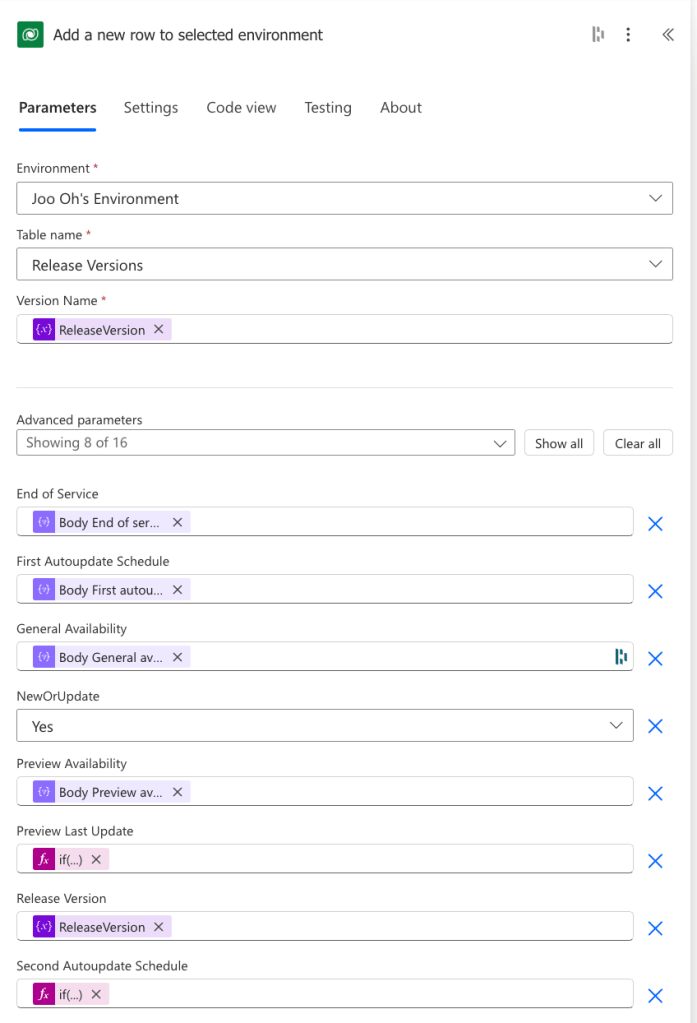
Now that my data is in Dataverse, I’ll add a final step within my Power Automate flow so I get an email notification when there are new or updated rows in Microsoft’s page:


Lastly, I can create a quick Canvas app using the data in my Dataverse table to show the information. With this, I can add the Canvas app to my arsenal of internal tools to quickly see when the next service updates are coming up.

Thanks for reading! Stay tuned for more.
I want to learn more about the technical details:
 Arils Consulting